History
Typical features
Touch screen
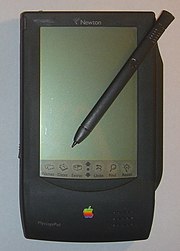
Many original PDAs, such as the Apple Newton and the Palm Pilot, featured touch screens for user interaction, having only a few buttons usually reserved for shortcuts to often used programs. Touch screen PDAs, including Windows Pocket PC devices, usually have a detachable stylus that can be used on the touch screen. Interaction is then done by tapping the screen to activate buttons or menu choices, and dragging the stylus to, for example, highlight. Text input is usually done in one of four ways:
- Using a virtual keyboard, where a keyboard is shown on the touch screen. Input is done by tapping letters on the screen.
- Using external keyboard or chorded keyboard connected by USB or Bluetooth.
- Using letter or word recognition, where letters or words are written on the touch screen, and then "translated" to letters in the currently activated text field. Despite rigorous research and development projects, end-users experience mixed results with this input method, with some finding it frustrating and inaccurate, while others are satisfied with the quality.[1] Recognition and computation of handwritten horizontal and vertical formulas such as "1 + 2 =" was also under development.
- Stroke recognition (termed Graffiti by Palm). In this system a predefined set of strokes are defined to represent the various characters needed. The user learns to draw these strokes on the screen or in an input area. The strokes are often simplified character shapes to make them easier to remember.
PDAs for business use, including the BlackBerry and Treo, have full keyboards and scroll wheels or thumb wheels to facilitate data entry and navigation, in addition to supporting touch-screen input. There are also full-size foldable keyboards available that plug directly, or use wireless technology to interface with the PDA and allow for normal typing. BlackBerry also has additional functionality as push based email and applications.
Newer PDAs, such as the Apple iPhone and iPod touch include new user interfaces using other means of input. The iPhone and iPod touch uses a technology called Multi-touch.
Memory cards
Although many early PDAs did not have memory card slots, now most have either an SD (Secure Digital) and/or a Compact Flash slot. Although originally designed for memory, SDIO and Compact Flash cards are available for such things as Wi-Fi and Webcams. Some PDAs also have a USB port, mainly for USB flash drives.
As more PDAs include telephone support, to keep the size down, many now offer miniSD or microSD slots instead of full-sized SD slots.
Wired connectivity
port/
Wireless connectivity
Synchronization
An important function of PDAs is synchronizing data with a PC. This allows up-to-date contact information stored on software such as Microsoft Outlook or ACT! to update the database on the PDA. The data synchronization ensures that the PDA has an accurate list of contacts, appointments and e-mail, allowing users to access the same information on the PDA as the host computer.
The synchronizing also prevents the loss of information stored on the device in case it is lost, stolen, or destroyed. Another advantage is that data input is usually a lot quicker on a PC, since text input via a touch screen is still not quite optimal. Transferring data to a PDA via the computer is therefore a lot quicker than having to manually input all data on the handheld device.
Most PDAs come with the ability to synchronize to a PC. This is done through synchronization software provided with the handheld, such as HotSync Manager, which comes with Palm OS handhelds, Microsoft ActiveSync for older versions of Windows or Windows Mobile Device Center on Windows Vista, which comes with Windows Mobile handhelds.
These programs allow the PDA to be synchronized with a Personal information manager. This personal information manager may be an outside program or a proprietary program. For example, the BlackBerry PDA comes with the Desktop Manager program which can synchronize to both Microsoft Outlook and ACT!. Other PDAs come only with their own proprietary software. For example, some early Palm OS PDAs came only with Palm Desktop while later Palms such as the Treo 650 has the built-in ability to sync to Palm Desktop and/or Microsoft Outlook, while Microsoft's ActiveSync and Windows Mobile Device Center only synchronize with Microsoft Outlook or a Microsoft Exchange server.
Third-party synchronization software is also available for many PDAs from companies like Intellisync and CompanionLink. This software synchronizes these handhelds to other personal information managers which are not supported by the PDA manufacturers, such as GoldMine and Lotus Notes.


No comments:
Post a Comment